> ## Documentation Index
> Fetch the complete documentation index at: https://docs.aumbot.co/llms.txt
> Use this file to discover all available pages before exploring further.
# Install AUM
> Get started with AUM in just a few steps for macOS or Windows.
## Getting Started with AUM
Follow these simple steps to install and start using AUM on your device.
### 1. Create an Account
Create your free account on [aumbot.co/register](https://aumbot.co/register) to access your download files and personalized setup.
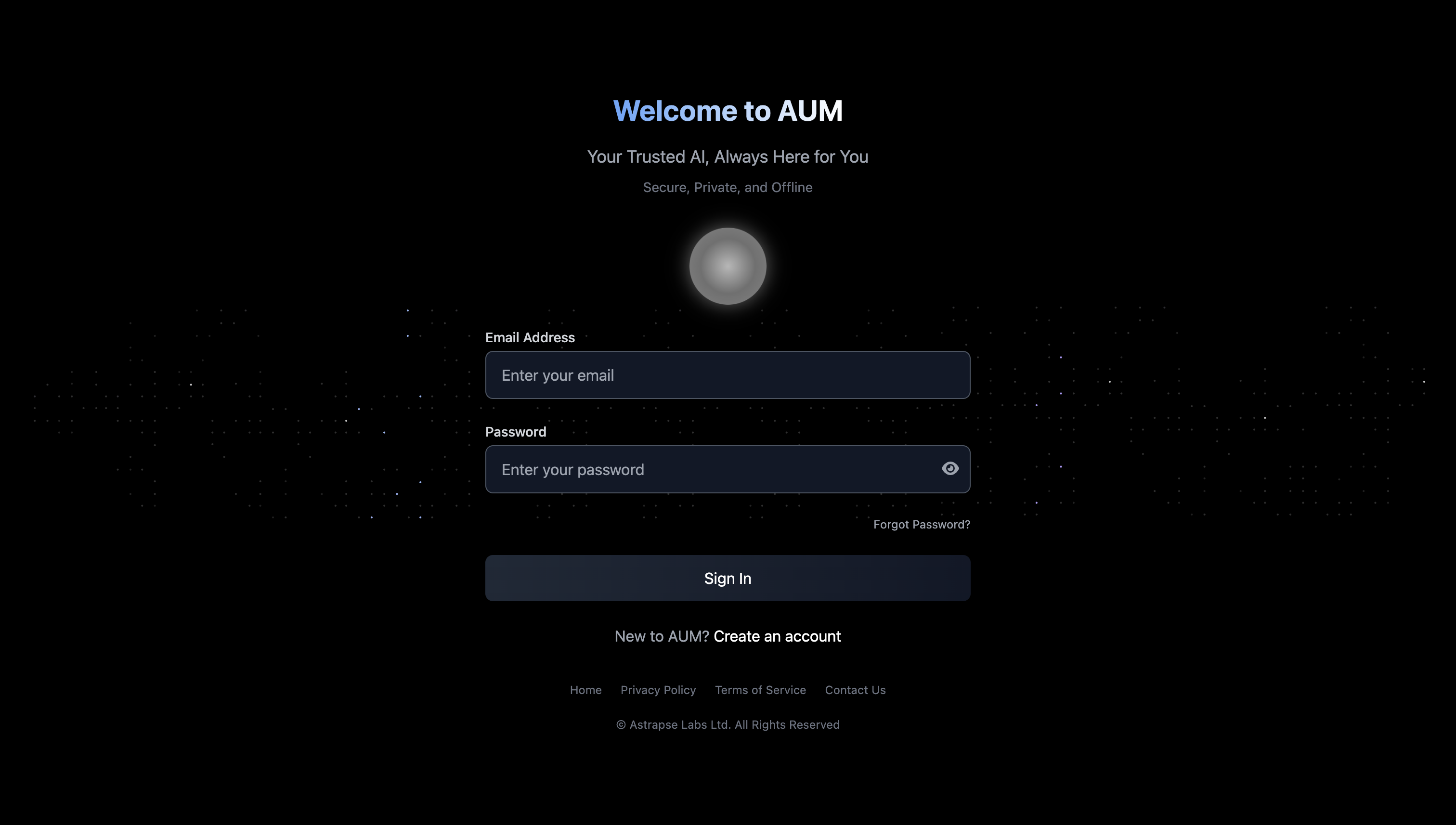 ### 2. Download AUM
Choose your operating system below and download the appropriate version of AUM.
* Visit your [dashboard](https://aumbot.co/dashboard) after signing in
* Download the correct **macOS** version of AUM
* Use the **Intel** version if you're on an older Intel-based Mac
* Use the **Silicon** version if you have an M1/M2/M3 Mac (Apple Silicon)
* Ensure you allow installations from unknown developers if prompted\\
### 2. Download AUM
Choose your operating system below and download the appropriate version of AUM.
* Visit your [dashboard](https://aumbot.co/dashboard) after signing in
* Download the correct **macOS** version of AUM
* Use the **Intel** version if you're on an older Intel-based Mac
* Use the **Silicon** version if you have an M1/M2/M3 Mac (Apple Silicon)
* Ensure you allow installations from unknown developers if prompted\\
 ### 3. Unzip & Install (macOS)
After downloading:
* Unzip the `.zip` file
* Move the AUM app to your **Applications** folder
* Launch the app
If you're prompted with a security warning, follow these steps:
1. Go to **Apple Menu > System Settings**
2. Select **Privacy & Security** from the sidebar
3. Scroll to **Security** section
4. Click **Open Anyway**
5. Enter your login password, then click **OK**
### 3. Unzip & Install (macOS)
After downloading:
* Unzip the `.zip` file
* Move the AUM app to your **Applications** folder
* Launch the app
If you're prompted with a security warning, follow these steps:
1. Go to **Apple Menu > System Settings**
2. Select **Privacy & Security** from the sidebar
3. Scroll to **Security** section
4. Click **Open Anyway**
5. Enter your login password, then click **OK**
 Initial launch may take a few moments as the AI model is being downloaded.
* Visit your [dashboard](https://aumbot.co/dashboard) after signing in
* Download the **Windows** version of AUM (EXE or ZIP)
* ⚠️ Installer coming soon: For now, Windows support is in final polishing.
* When available, if Windows Defender shows a warning, click:\
**More Info → Run Anyway**
Initial launch may take a few moments as the AI model is being downloaded.
* Visit your [dashboard](https://aumbot.co/dashboard) after signing in
* Download the **Windows** version of AUM (EXE or ZIP)
* ⚠️ Installer coming soon: For now, Windows support is in final polishing.
* When available, if Windows Defender shows a warning, click:\
**More Info → Run Anyway**
 ### 4. Start Using AUM
Once AUM is installed:
* Open the app
* Log in using your account
* You're ready to go!
### 4. Start Using AUM
Once AUM is installed:
* Open the app
* Log in using your account
* You're ready to go!
 You can access the **Shortcuts Bar** anytime from your **Profile Sidebar** for quick actions and inspiration.
